Sunday, April 12, 2020

Lab Nine: Using ESRI Arc Collector

Introduction


In this week’s lab, we were able to play around with Arc Collector. Arc Collector is an app that can be download on multiple devices including IOS and Andriod that is used collectively with ArcGIS products. Arc Collector lets you collect data based on the location of certain items (bathrooms, gathering areas and much more), in all helping you create maps that can be useful for individuals. This app is great way to make Ground Control Points as you are pinpointing certain objects off your device and marking them on a map. While accuracy may be an issue, this applies down a great foundation of where certain things are and necessary adjustments may be made once collected.

Methods


Tutorials:

Try Collector:

Collector Map:


The first tutorial was a refresher on how to use the app. Although the tutorial was based on being located at a Park, I was not able to do so. I instead followed along with the tutorial and used my backyard as an example. For the tutorial, it wanted me to identify objects and paths. Since I have both in my backyard I was able to identify a bench and a gravel path. Once over the object, you click ‘capture’ and it pinpoints the location (figure 1). As seen in the picture below, once captured you are able to type the amenity and give further notes for identification. I also was able to take a picture of my bench which is located on the ‘attached tab’.
Figure 1 (Arc Collector Identify a Bench)

The next thing that I completed was developing a path on the map. For this, you need to choose path type (mine was gravel). Once on the path, you click the (+) button to mark the path as you walk along. Once moving, you click the overflow menu to start streaming and it captures your path quite accurately depending on how strong your signal strength is. Since I used my backyard gravel path and it was raining outside my depiction is slightly off but here is an example of what it looks like below (figure 2).


Figure 2 (Arc Collector Creating a Path)
After this tutorial, it was time to complete ‘creating your own map’ tutorial. In this case, I again used my backyard but, expanded upon what I already had. For this part, we needed to access ArcGIS Online to develop the map from the data collected from Arc Collector. The first thing we needed to do was create a new feature layer. I was able to create point, line, and polygon layers. I then labeled them as Places, Paths and Areas (which I was typing at the time. (Figure 3)


Figure 3 (ArcGIS Online, Editing Feature Layers Names)
I continued through the tutorial and began to add more fields to my map. One field was called type of amenity. Since I needed to accommodate for my backyard, I instead added a fountain, barn, and table for my labels. The labels indicate what certain things are my clicking them on the map. It gives the viewers a general idea of what things are (figure 4).


Figure 4 (ArcGIS Online Creating Labels for Field)
Once I was finished needed to enable attachments so that when I gathered further objects/ paths and areas on Arc Collector, It would formulate them onto the map I created. Once finished I saved the map as Hometown and added a Tag, “Yard,” to give a further description of where I was at (Figure 5).
Figure 5: ArcGIS Online, Saving My Map
Figure 6: Location of where I created my map, Northern Long Island, NY.


Figure 7: What I collected using Arc Collector (Small Barn, Bird Fountain, Table, Gravel Path)

Discussion / Conclusion


In conclusion, this lab was a great way to get familiar with another application associated with ArcGIS. It is nice to develop knowledge of more applications and see how they relate to one another. Being able to use my phone made it convenient to create points for my map and it was really cool how it pinpointed them. This app can be a great tool for the UAS industry. Instead of gathering data in a small space, with a drone you can link Arc Collector to the drone and gather numerous amounts of data for objects, paths, and areas that may need to be mapped for convenience.


Sunday, April 5, 2020

Lab Eight: Calculating Impervious Surface Area

Introduction


In this week’s lab, we started out by visiting the ArcGIS online lesson gallery and selecting,
Calculate Impervious Surfaces from Spectral Imagery Tutorial. From here we needed to download
the tutorial onto our computers and put them in to correct locations as necessary. I was able to move
everything to my local drive and when I was finished, I moved everything to my student folder in the
classes drive.

 Methods/ Tutorial


The first thing once we opened ArcGIS Pro and the data was opened into there was to
“extract bands.” I was able to do this by using the “extract bands” option as seen in (figure 1).
Figure 1 (Extract Bands Function)

As seen from above, you can see that vegetation, roads and houses are all distinct colors but,
all the related to one another so it is easier to classify them. 


Moving on, I was able to work with the classification wizard. In simple terms, the classification wizard lets you denote comparable recipients to one color so that it is more accessible to know what things are to one another. In technical terms, this is being able to segment the image. By doing this, you are able to group similar pixels together. There are multiple steps to go through while working through the classification wizard. 


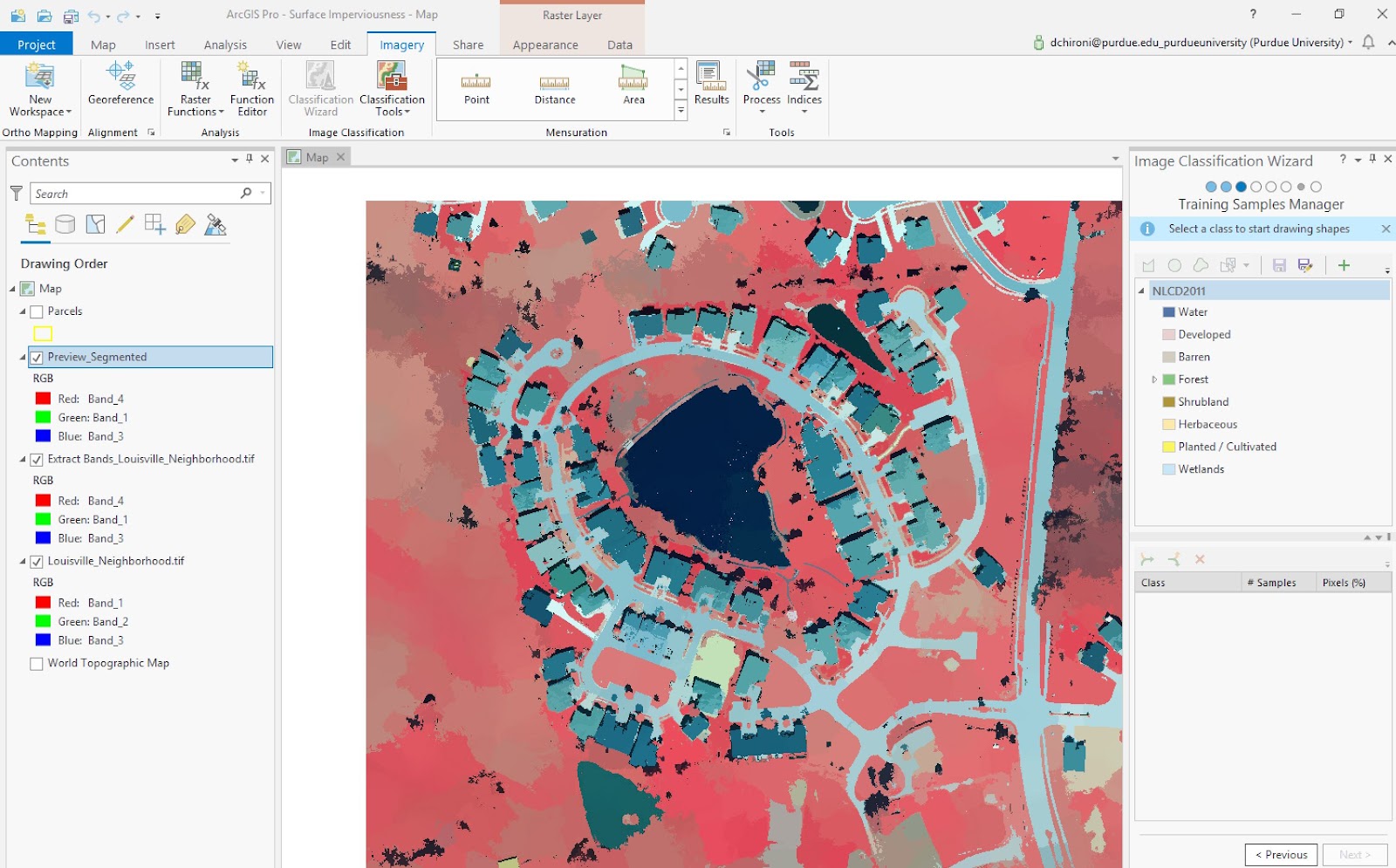
The next thing I was able to do was to classify the imagery (figure 2). On this step, I need to “circle” out points that were the same thing. For example in the picture below there is a small pond and a big bond. When I circled these out, I classified them as both “water.” This lets the program recognize different things from one another (roads, water, grass, etc.)

Figure 2 (Classification Wizard) Classify The Imagery 

Once the items were classified, I was able to change the colors of the sample to better distinguish the map (figure 3). With the classifications I have set and the wizard being completed, click run and a new layer is added.


Figure 3 (Classification Wizard Continued)

There are definitely some mistakes in the new layer. You can see that in figure 3 some buildings
are blue (depicted as water) when they shouldn’t be. Since this was a tutorial I was not worried no
had the time to rerun the program to correct for errors. 


The final thing we did was reclassify errors. For this, all you have to do is select the areas that were classified wrong and tell the program what it should be (impervious vs pervious), as seen in figure 4. Depending on how perfect you want your to image to be, this step can take up to multiple hours to make sure that everything is classified correctly and even then, it won’t be a hundred percent.

Figure 4 (Impervious vs. Pervious Depiction)
Conclusion / My Final Product:

Overall, this was a helpful tool to use as I was able to learn more tools to use on ArcGIS Pro.
From this tutorial, I was able to create a map (figure 5) showing the different classifications and
the differences between the impervious vs pervious surfaces. 


Figure 5 (Final Map Created From Tutorial)

Sunday, March 22, 2020

Lab Seven: Volumetrics with UAS Data

Introduction


In this week's lab, our class focussed on discovering the volumes of a specific area using the Wolfpaving data and the newly used Litchfield data set. The volumetric analysis consists of calculating various amounts of particular terrains to see changes throughout a period of time or determine the depth of what you are measuring. This can be accomplished by using a DSM (ArcGisPro) or a 3D model map (Pix4d). In this lab, we calculated the volume of a pair of stockpiles that were discovered at the Litchfield and Wolfpaving mining locations. UAS data is high when wanting to analyze various volumes of terrains. UAS data achieves different elevations to build a 3D model on an application. Using volumetric analysis, we are able to discover the amounts, making UAS data collected one of the best ways to find tools like these.  

Methods 

We first started out using the application, Pix4D, and the data set from Wolfpaving. We were tasked to calculate the volumes of a stockpile located in the northeast corner of our pictured data set. The following steps to do this are as follows:

Project--> Volumes--> (Outline the desired area using the mouse of your computer)--> Right Click--> "Calculate

There is also a setting to change the way the volume is calculated under volume settings. These consist of:


  • Triangulated
  • FLT Plane
  • Align with average altitude 
  • Align with Lowest Point
  • Align with Highest Point
  • Custom Alt. 

We used the calculations for all these settings to see the differences in outputs that were evaluated for the volumes. 
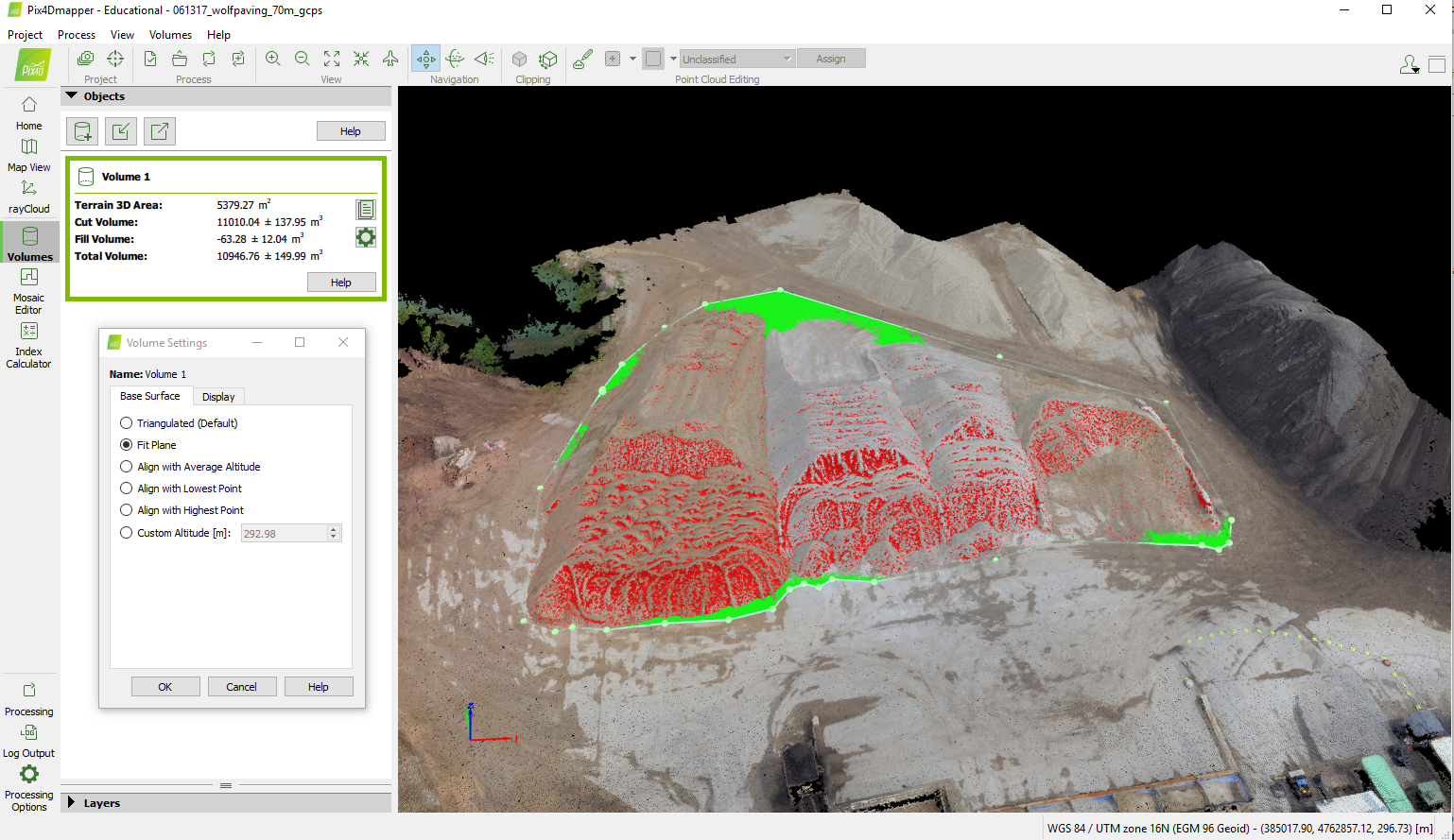
Figure 1 (Pix4D Calculating Volumes)


We then moved back to ArcGIS Pro to build maps and discover the progression of the stockpiles. We needed first to extract the section we wanted to focus on. This is accomplished by creating a new feature class in the database. Once established, we will be able to extract the area using a polygon tool and click around the area of interest. Once the area is outlined, you use the tool, " Extract by Mass," to create that new layer that is solely the stockpiles. Now that we can focus on a specific section (layer) calculating in that area has become a whole lot easier (Figure 2). The last step is to go back to the geoprocessing pane and find the "surface volume" pane to calculate. One of the is to know what the plane height is. To do this, all we need to do is click around the edges of our new highlighted layer to pull up that number. Once that is inputted, and we click "run," and surface volume calculations have been formed. A table will be developed in the contents, along the bottom.
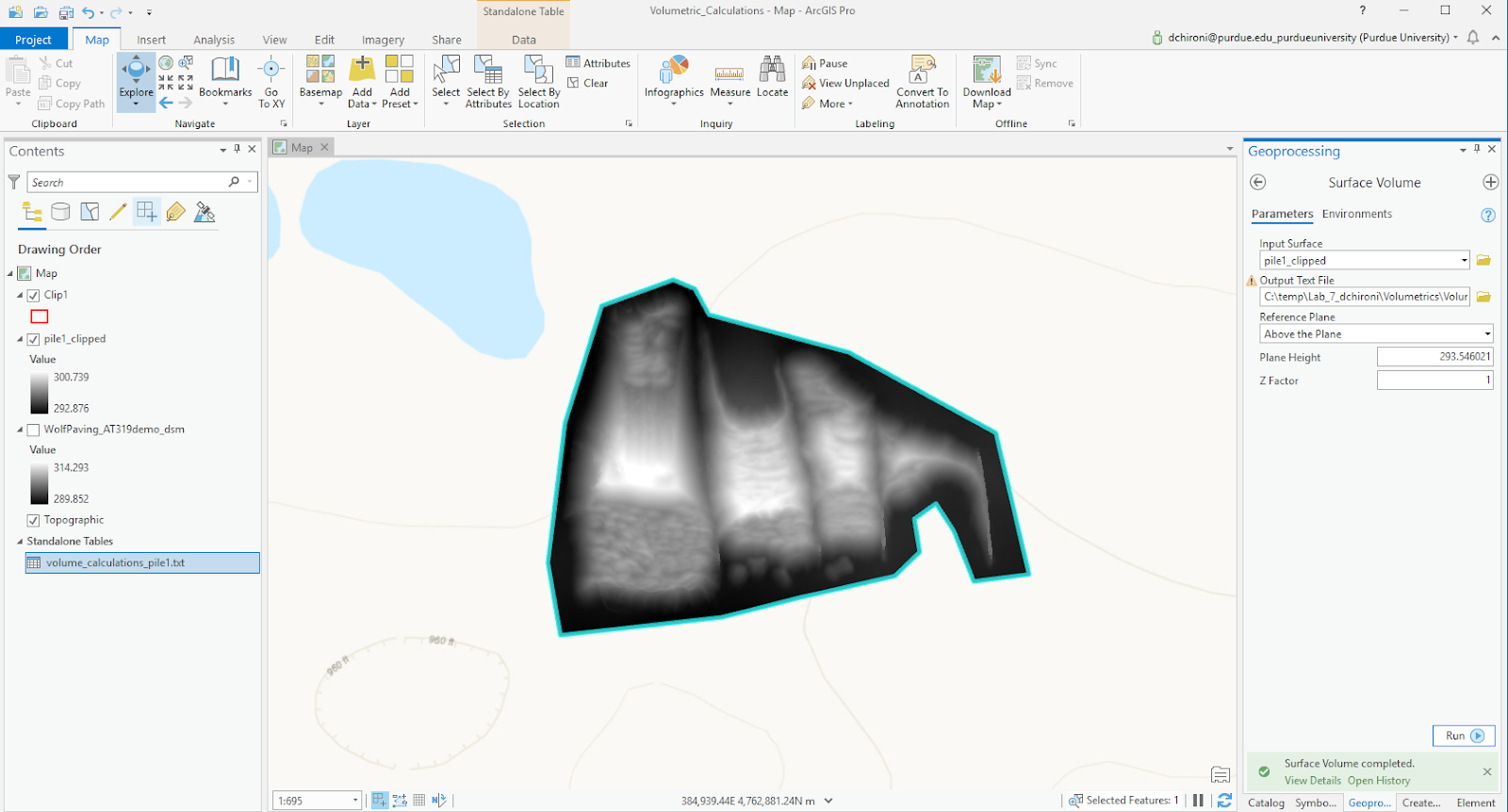
Figure 2 (Extracting Stockpile & Calculating Volume)


Figure 3 (Map Created to show Volume Calculations and Exerted Hillshade)


Next, we moved onto the Litchfield data set location. This area was also a mine site and had data collected over a period of three months. (July 22nd, Aug. 27th & Sept. 30th, 2017). I took the data and moved into the ArcGisPro application. For this assignment, we needed to compare the pile over some time to see how much the terrain changed. Resampling the data was one of the first steps to accomplish. This makes sure that the information is correctly scaled and matches each of the layers we add-in. The "resample" tool allows us to carry out this step. It was noted that we resample the data to 10cm. Since we had an exerted pile and the layer of the whole site, we were able to compare the change of volume of the specific dates listed above. I also created a small map that showed the total change over the entire time. This final step was accomplished using the "cut fill" tool to show the net gain and loss of volume for the Litchfield data set (figure 4).
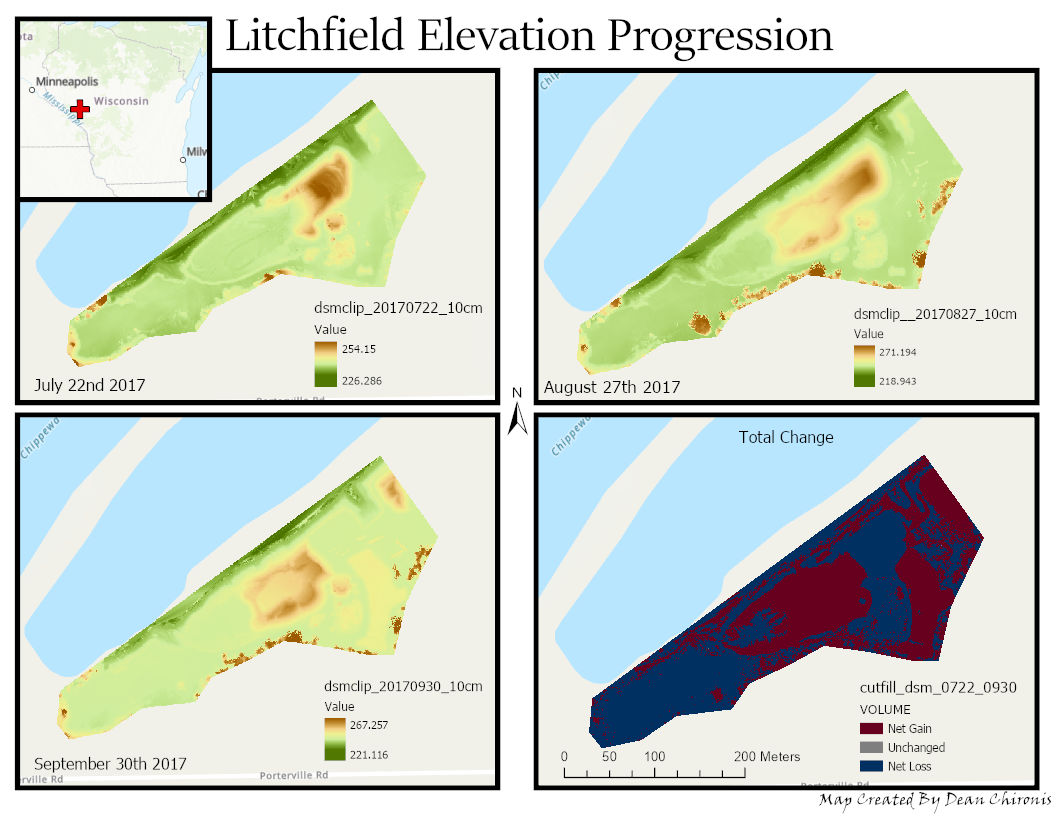


Figure 4 (Litchfield Elevation Progression Map)


Discussion


The data from Pix4d and ArcGIS Pro can be compared, looking a the table provided in figure 3 and the table created in (figure 5). Although ArcGIS Pro is the more accurate one to use, Pix4d is an excellent tool at providing an evaluation for volume. Compared to the Wolfpaving data set and the Litchfield data, Litchfield had more that we could work with. This was because there were multiple data sets taken on different days and could see the change over time. When taking data over some time, we must use the same Metadata. This includes using the same altitude, flight path, sensors, and the number of images taken. Any variations off this can result in alternated data that may not be accurate. If this isn't the step taken, resampling the data will also help and keep everything scaled the same. Also, GCPs need to be placed at the same base location; otherwise, the elevations will be off from data set to data set. Once all the processing and tasks were completed, I created the maps above to show a visual presentation of what I discovered. The map shows the highlighted extracted area as well as the whole site. I used multiple mini-maps to show the progression of the stockpiles. The other plan included the elevation and measurements from Pix4D compared to ArcGIS Pro. 

Figure 5 (Litchfield Data Set Min & Max Heights of Each DSM)

Conclusion


Volumetrics can be a beneficial tool, especially when it comes to UAS data. The comparison of something over time can be crucial for a lot of companies dealing with various terrains. Even though our main class focus is dealing with mine sites, this is just an example used to show how much more we can use it with. 

Sunday, March 1, 2020

Lab Six: Processing Image data in Pix4D - with GCPs

Introduction

In this week’s lab, we moved back into exploring with the Wolfpaving data set but this time we added in GCPs, (Ground Control Points). GCPs are designated as spots on the surface of the earth that are observed positions used to geo-reference imagery. Our class needed to go back into the Wolfpaving Data and reprocess it to show the difference between the maps with GCPs and the one from last week (non-GCPs). When it comes to quality, using GCPs can help improve your data if your drone is not RTK equipped. RTK (Real-time kinematic positioning) is a satellite navigation system used to improve the precision of point data obtained from satellite-based positioning systems. This can be anything from the U.S (GPS), GLONASS, Galileo, etc. So, without RTK, Skipping ground control points may generate not a precise finished project, and the regeneration of the data might not have an exact measure and orientation. Many people get confused when discussing GCPs and think that they are in relation to checkpoints produced in Pix4D. When it comes to checkpoints, they are used to estimate the complete exactness of a given model, in this case, the Wolfpaving data. The marks of the checkpoints are used to determine the 3D position as well as any errors when clicking on GCPs. To see how off the first indicated positions were from the GCP’s locations, you are able to see the results in the quality report: figure 1


Figure 1 (Initial Quality Report)

Methods


Working with the Wolfpaving Data again this week made it easy to find everything and be able to reprocess it with GCPs. I was able to get the GCP coordinates via a text file, provided in the Class 319 folder. The coordinates were presented in a YXZ format for proper accuracy & location (figure 2). We were able to import the data into Pix4D under the project tab. Making sure that Pix4D knows that you data is in YXZ format is important otherwise your point locations may leave thinking that you did something wrong. I initially didn't take note of this a saw that my point locations were in South Africa and not in the United States midwest. So, I had to manually enter the format and regenerate the location of the points to get the correct positions.


Figure 2 (GCP Coordinates)
We then experimented with the rayCloud editor to make sure that our GCPs locations matched up with the initial processes data. We had to manually find the painted "L" shaped GCPs through Pix4D and line up the positions to make sure that they matched precisely. As seen in figure 3, the GCPs used for the Wolfpaving Data were painted orange and we needed at least two matches so that Pix4D can understand the true GCP location.


Figure 3: GCP and Clicked Location using rayCloud
After this step, we needed to rematch and optimize the data. Looking back at figure 1, this helped us realign the green dost with blue dots to make them perfectly overlap for well-defined data. The whole process took a total time of about 45 minutes which if we had more GCPs/ data this can take up to hours and even days depending on the size of the data you are trying to process.

Discussion/ Comparison


Figure 4: Ortho Comparison 


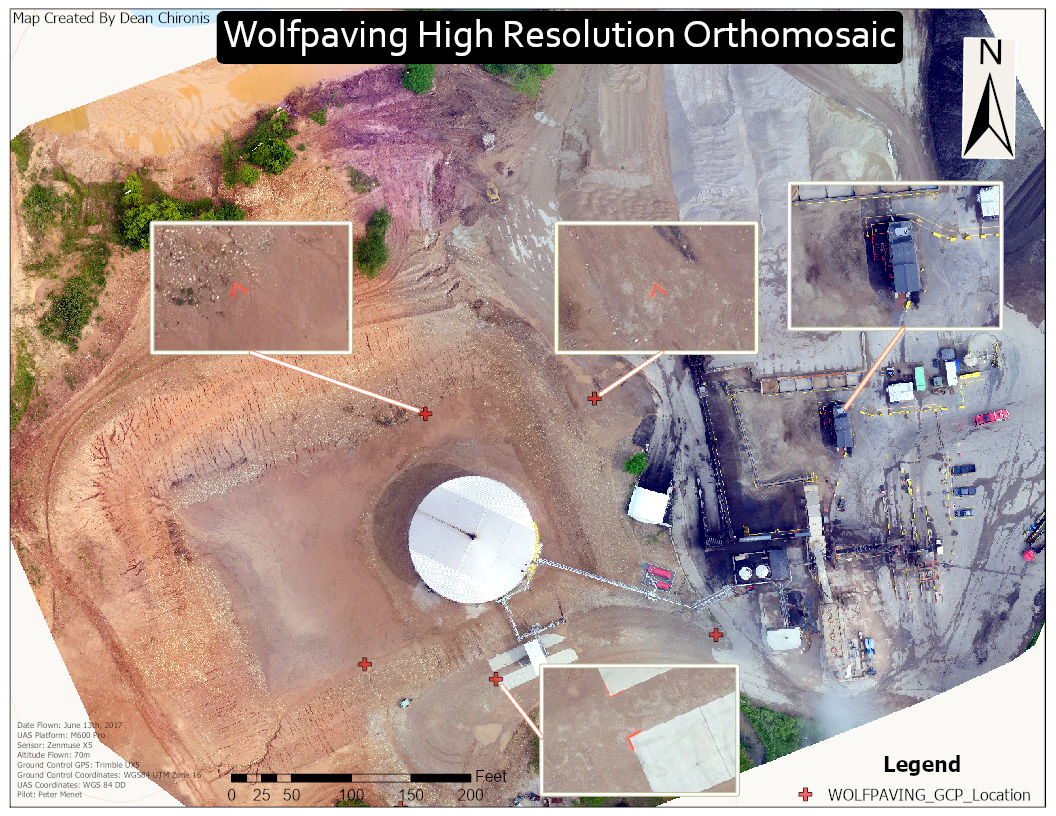
Looking at this week’s lab, you can see in the Orthomosaic with GCPs, the GCPs align with the painted GCPs. This makes the overlap of the projection to the ground a whole lot more accurate and items in the map are more easily defined as seen in  (figure 4). Once the data was processed in Pix4D, I moved the data over to ArcGISPro and developed a map with insets to show GCP locations (figure 5). I made the GCP locations a ‘red cross’ to make it easily visible to distinguish their locations. I even zoomed in on the Wolfpaving data to where there is a work trailer to show the detail of the given map processed. Overall this was a fun lab and experiencing the use of GCPs helped me understand the concept of precision when it comes to work-related jobs in this field.


Figure 5: (Final Product GCP Orthomosaic)

Conclusion


The use of GCPs makes me recognize the accuracy of the data that we are able to process. I also learned about the significance of proper field notes when it comes to data collection. When we enter this industry, we want to make sure that we prepare the best and most accurate results for our client. This shows them our skill set as well as the capability of solving/ viewing a certain problem.

Sunday, February 23, 2020

Lab 5: Getting Started with Living Atlas

Introduction:

In this week's lab, we were able to explore the function of the Living Atlas in the application, ArcGIS Pro. What the living atlas comprises of is a wealth of data spanning from calculated painful to population growth and much more. Using this pre-determined data, we can build upon it and show correlations between different data sets. At the beginning of this lab, we were able to follow an online tutorial that helped in becoming familiarized with all the components/ functions of the living atlas. While exploring through the website, I have found five lessons that I found to be interesting as it can relate to the UAS industry. 

Informational Methods 

Get Started with ArcGIS Living Atlas of the World

The mandatory lab assignment for this week's lab was to go through and follow the "Get Started with ArcGIS Living Atlas of the World," tutorial. Throughout this tutorial, we were able to familiarize ourselves with multiple functions spanning from the categories pane to water balance apps coming from the contribute tab. One of the most significant things we learned here was adding different atlas layers to one map. We started by viewing the population growth of Las Vegas, showing the intensities of the red darken as the population increased over the years (figure 1).

Figure 1: Population Growth of Las Vegas 05'-06'

The next thing did move across the Baltimore, MD, and experimented with population imagery. We were able to create and scale using colors ranging from light blue (small population) to dark purple (high civilization). The map now helps us distinguish urban areas based on various colors dealing with population density, making it easier to variations at different locations (figure 2).


Figure 2: Population Density Baltimore, MD
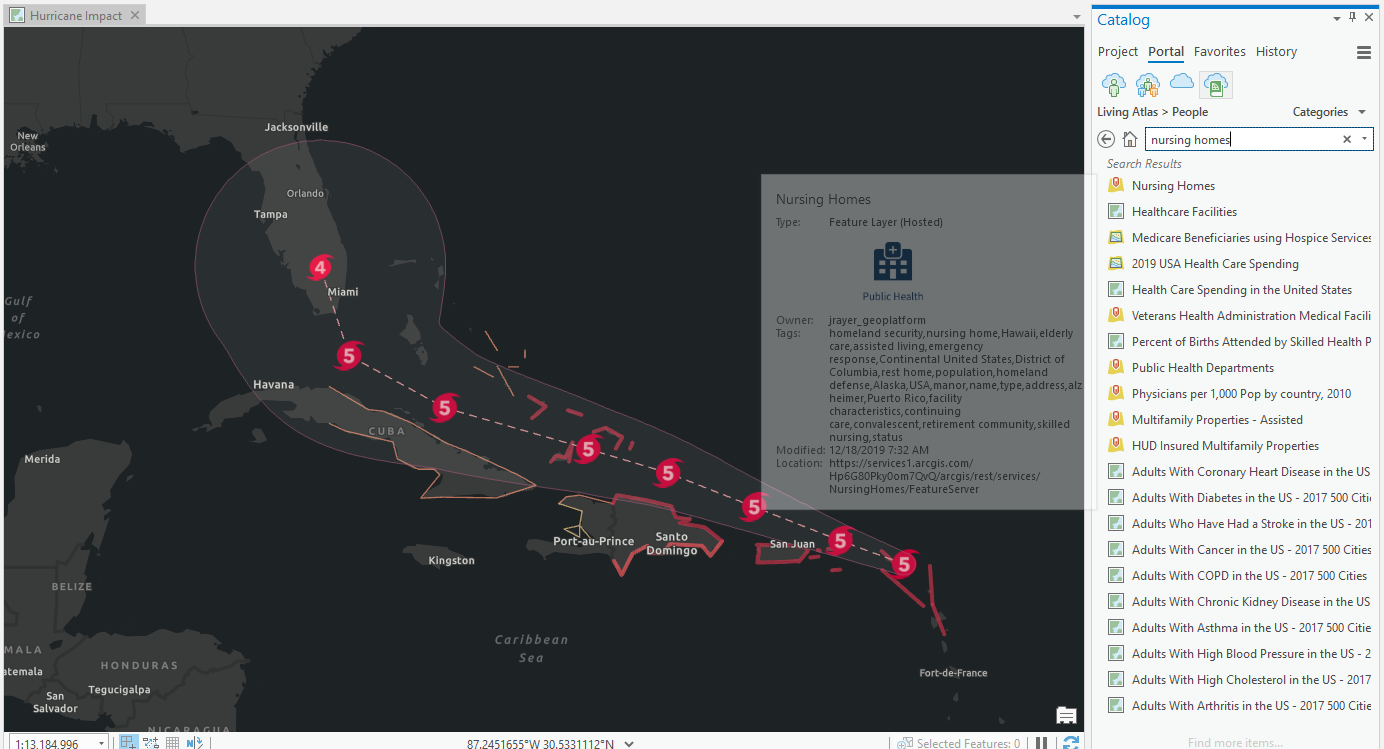
The last part of this tutorial was finding a specific Atlas layer and using its data to picture out the destruction of Hurrican Irma, off the coast of Florida. We were also able to determine it's projected path using the data from the National Hurricane Center. We were also able to incorporate the location and number of Nursing homes in the area and see where the hurricane path will move through those areas. This could be helpful information to present beforehand since the National Hurricane Center was able to predict the intended route and that there is data available for the number of nursing homes in the area. This could be sent out as a warning and help people evacuate and get to safety. The overall goal now for I was to play around with layers in the Atlas. And finally,  piece multiple layers together to show a picture/ correlation of all. 
Figure 3 (Projected Hurricane Path ArcGIS Atlas Tutorial with MetaData)


Figure 4 ((Projected Hurricane Path With Nursing Home Locations ArcGIS Atlas Tutorial)

Helpful Tutorials that I found to be Beneficial to the UAS Industry & to Myself 

Georeference Imagery in ArcGIS Pro

When it comes to rater data, usually the most common way, drone aerial imagery, the data tends to be pretty accurate. But, there may need adjustments using the process learned in class, photogrammetry. This tutorial helps with lining up multiple GIS data. When we arrange imagery using georeferencing tools such as GCPs (Ground Control Points), you can distinguish image location using coordinate systems. This is beneficial to the UAS industry because we work hard to be as precise as possible. Whether it is showing a client or proving a point, having critical data to stand behind is helpful.

Mapping the Battlefield

This one I found to be fascinating as it shows how military conduct clearing operations by viewing various 3D maps of missions. This map tutorial deals with possible visibility issues, obstructions, floor levels, and how personal should move from point A to B. 

ArcGIS Pro Shortcuts

Another remarkably valuable source was the shortcut tutorial. This link should me various shortcuts while using the ArcGIS application and definitely lowered my time while working on a project and trying to figure out how to do certain matters. Most of us are fast typers and being able to find shortcuts using the keyboard will make processing data and creating maps more efficiently.

Estimate Solar Power Potential

Lastly, solar power has been a hot topic over the last decade and is helpful to our environment. The goal of this source was to map out potential Solar Power use over an area in Wsiggonton D.C to reduce electrical output and electrical costs. Using a pilot launched UAS program, a non-profit organization was able to map out how was able to install solar panels, and show the effect of its installation over the town. I found this astounding as we continue to go green and protect our environment. 

Creating My Own 

As I took on the challenge of creating my own layered map, I decided to look close to home. In my findings, I was able to show a correlation between high traffic roads and the number of accidents, fire stations, and hospitals in a given area. I first pulled in a data set that showed traffic congestion in North American and focused on Queens, New York. As seen from the Metadata, green represented low traffic, yellow-medium, and red for extraordinary traffic  (figure 5).


Figure 5 (Project MetaData)
I added in five different layers:

  • Urban Area, Long Island, New York: to show the contrast
  • Traffic Flow (Figure 6) North America: various (High to low on major highways/ roads)
  • Firestation Locations 
  • Hospital Locations
  • Accident Locations


As seen from my maps, you can see areas where there is high traffic flow, more accidents occurred. Not only that, you can see that there are generally more fire stations near high traffic/ populated areas as you move further West into Queens. Finally, if you are able to notice that more Hospitals are located near major roads that are highly populated. In conclusion, I was able to pull in different layered maps from the Atlas and create a generalized map showing correlations between traffic and the number of accidents, hospitals, and fire stations near a given location (figures 8,9,10).  

Figure 6 (North America Traffic Flow)
Figure 7 (Number of Accidents, Hospitals, & Fire Stations)
Figure 8 (Queens, New York:  Traffic-Related Accidents Correlation Map)
Figure 9 (Queens, New York: Traffic Flow Map)

Figure 10 (Correlation)

Conclusion:


This week's lab was very educational. It helped us familiarize the Living Atlas, view beneficial sources, learn shortcuts with the software and finally be able to mess around a create our own layered map. This was not much a step back, but being able to take a breather and learn new things/ recover topics that may have been confusing at first was nice to offer. I can now show correlations between different data sets that may be beneficial to individuals depending on the topic and industry presented.

Monday, February 10, 2020

Lab # 4 Processing Image data in Pix4D (without GCPs)

Introduction:
Figure 4 (Wolfpaving Orthomosiac)


§ What is Pix4D?


In this week’s lab, we experimented with the software program Pix4D. Pix4D is a program that takes up to thousands of images to generate one detailed 2D/3D image. It automatically converts images taken by drones, by hand, or by plane. And finally, it presents profoundly clear, georeferenced 2D maps and 3D models. Some products that it generates are cities, forests, farms, and much more. During the process of this week, we used our previously used Wolfpaving data to create a 3D animation of the area. Pix4D is an essential tool for UAS data processing because of presentation purposes. Having a 3D model accessible to show clients problems/ situations dealing with the terrain can be easily viewed and comprehended.  

Methods:


 Factors that should be considered when designing an image acquisition plan? 

  • Representation of terrain/object to be restored.
  • Ground Sampling Distance (GSD): This will determine flight height the equipment was flown at during a mission
  • Overlap: The overlap depends on the kind of terrain that is mapped and the speed at which the images are taken
o Image Acquisition 
When designing an image acquisition plan, one of the most prominent things to note is what type of terrain/ object you will be reconstructing. The image acquisition plan has a high impact on the quality of work that you will produce. Another factor to consider is using a grid image acquisition because it helps with increasing the overlap to have clearer results. Lastly, when designing an acquisition plan it is recommended that you fly higher during a mission because it improves your results when making a map. 

o Overlap
Figuring out how much overlap you should set during the creation of a project is important to know the quality of your project. Before you start the process of combining all the pictures together, you should open all the images up and take a look at what you captured. Scanning through the images can make you see which ones were good and which ones will fall nicely with one another. During this lab assignment, we had 21 images to work with and you can see that all 21 images were used and worked thoroughly together. By opening up these images we can visually check how well the overlap is and if it was imminent enough.  
Bare minimums for overlap front and side
The general bare minimum for overlap is as follows: 
  • 75% frontal and 60% side overlap in general cases.
  • 85% frontal and 70% side overlap for forests, dense vegetation, and fields.
    • There is an increased need for the dense forest because how the number of objects that are included in the picture. The more there is, the more overlap we will need to clearly define the vegetation. 
  • 85% frontal overlap for single-track corridor mapping. Use a 60% side overlap if the corridor is acquired using two flight lines.
o Photo stitching vs. Orthomosaic generation
Photo stitching is only used for small data sets because it only works best on terrain that is nearly flat. This is because the process of this uses a method of gluing images together just like a puzzle. A low data set can be used because it only requires a low amount of matches or key points during the overlap process. Using this method on uneven terrain can lead to distortions and the whole data set gone to waste. Orthomosaic is based on a method called, orthorectification. This method consists of removing distortions from images using a digital surface model. This can only be done if the overlap was performed well and there is a high number of matches from picture to picture.  
o Merging Projects
When comes to merging projects it can be useful for when working with different acquisition types in particular, terrestrial, grid and circular are practiced. It is also helpful for the process of reconstruction of an object using two different types of equipment to capture the image. (phone camera or a GoPro combined to make a 3D model.

o Difference between a Global and linear Rolling Shutter
Example Image of Global/ Rolling Shuter
The difference between the global shutter and linear rolling shutter is dependent on how the image
is captured. As seen above, the global shutter captures the entire image at once, creating uniformity
throughout. While rolling shutter using progressive motion during it’s exposure time. This why
rolling shutter causes wrapping in an image as seen above to the right. 
o GCPs necessary for Pix4D? When are they highly recommended?
Ground control points are points on a surface, anywhere on earth, that the point has a known location
and is used for geo-reference imagery. GCPs are not necessary for Pix4D but they are highly
recommended when using large data sets to make it easier to clearly define each point of interest
on the entirety of the image you are trying to create. In this week’s lab, we did not use GCPs because
this was an introductory lab for Pix4D and time permitting, we just needed to learn how to work
through the system and become proficient. Using GCPs will help define and link key points together
to produce a higher quality picture and will give a better quality report depending on the images that
were captured. 
o Quality Report
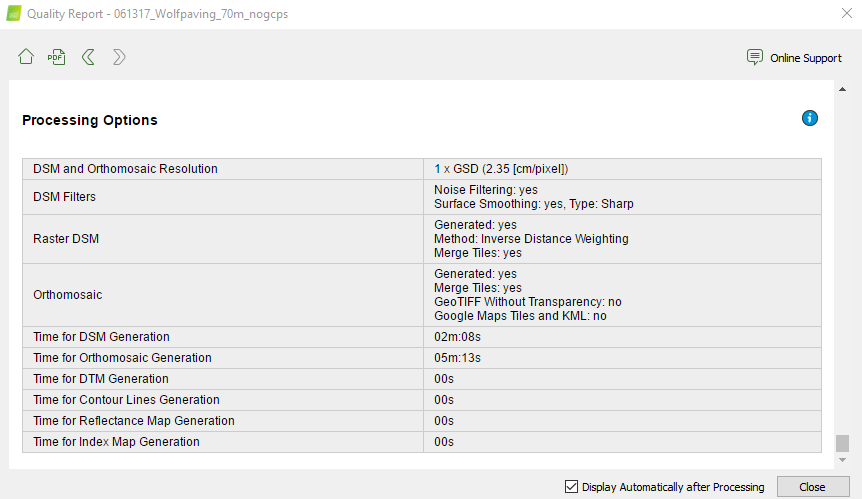
During the processing report, once data has been run, a quality report is pulled up on the screen.
There are three steps taken during the processing stage. There are initial, point cloud/ mesh and
DSM/Orthomosaic for step three. Step one processing must be completed first and when it is finished,
we are given a quality report on the data that was processed. Some of the things (but not all) that are
included in a quality report are, a quality check, Preview, Calibration Details, Initial Image Positions,
Computed Image/GCP/Manual Tie Points Positions, Absolute Camera Position and Orientation
Uncertainties, Overlap, coordinate systems and much more (as seen in figure 1 & 2). It also tells you
how many of the pictures were able to be processed out of the images you used in the data set.
As I said above, we used 21 images and 21 images were all processed and used (none rejected).
Viewing the overlap from our Wolfpaving data set we can see at the edges of the map were where
there was poor overlap, depicted in yellow. This could be because it wasn’t the main area of focus. 
Figure 3 (Animation)
Figure 1 (Quality Report)


Figure 2 (Quality Report)


Talking about voids again as we were processing, near the edges of the area that was photographed
were some gaps due to not enough overlay as the drone was capturing pictures. This was because
the edges weren’t the area of interest and more pictures were taken by the mounds to look for erosion
and possibles hazard areas. (Take a look at the animation.)
Differences between the DSM with no GCPs and last weeks lab with GCPs
Now moving back to using ArcGIS Pro we were able to use the data that was given a create a hillside
DSM. We can see that there is a difference in values between this generated DSM (figure 5) and the
one from last week’s lab (figure 6). This is because one was processed with GCPs and the other one
was not. When using GCPs we can get more accurate results because each point gets specific
coordinates including elevation to precisely show slopes and changes in terrain. By placing GCPs at
different elevations we can see the differences between each point and have a greater range between
slopes. This is why in (figure 6) there is a greater range between elevations than the one we produced
this week (figure 5).  
Figure 5 (Hillsahde DSM without GCPs)
Figure 6 (DSM with Slope & GCPs)
Conclusion:

Pix4D is a great tool to use when developing projects for commercial use. Bringing together UAS data and incorporating it into a 3D model can be an eye-opener. In this week’s lab, we were able to understand the components/ tools that are used in Pix4D and got develop a 3D animation of the area. We then transferred to ArcGIS Pro and developed a DSM to compare the DSM created from last week’s lab to see that difference in values based on using GCPs and not using them. Without using GCPs the processing time takes a lot less and gives a smoother look to your model. This is because there are no GCPs at different elevations to show precise differences. The more data you have, the longer the processing time it will take. So, you have to be patient and make sure that you do everything right the first time.